Hollyhock
- Available on Insiders (13/10/2026)
- Globally Available (24/10/2026)
EasyLife 365 Collaboration now lets you fix who owns a Group, Team or managed SharePoint site without leaving the Admin portal, and gives you more control over what new Teams, SharePoint libraries and Viva Engage communities look like when they are created.
What’s new?
Manage owners in the Admin portal
- The Details panel of a Microsoft 365 Group, a Team and a managed SharePoint site now lets you add and remove owners. Until now the list was read-only, and fixing it meant a trip to the Microsoft Entra or SharePoint admin center.
- A resource always keeps at least one owner, and the list accepts up to 100 owners, the limit of Microsoft Entra ID.
- A policy's minimum and maximum owners do not block you. If a change leaves the resource outside its policy, the compliance section shows it as not compliant.
- See Groups and SharePoint sites.
Name the first channel of a Team
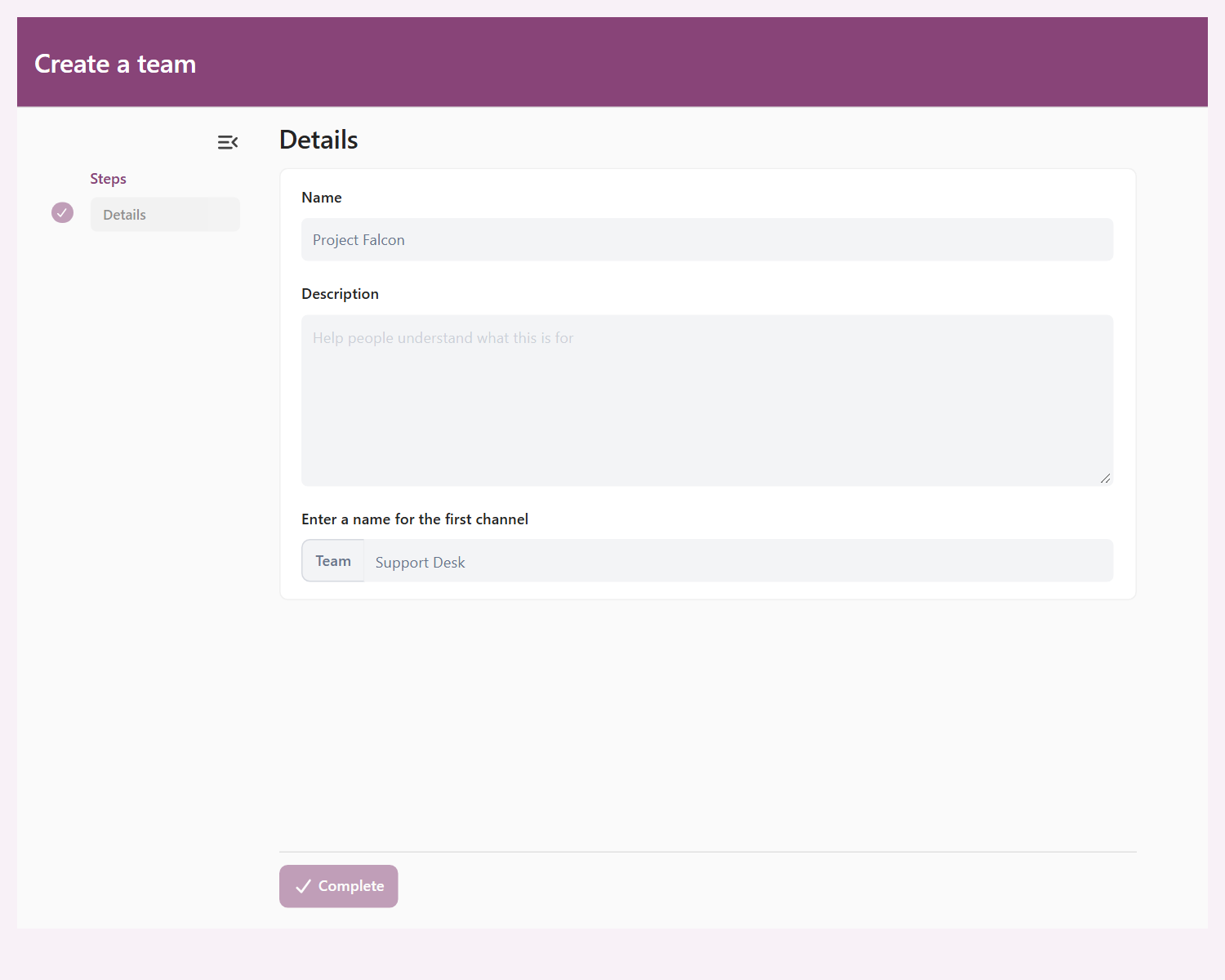
- A Teams template has a new First channel name under
Team settings→First channel. Leave it empty to keep the name Microsoft Teams chooses, enter a fixed name, or use{input}to let the requester choose the name in the creation wizard. - The name can use the usual EasyLife placeholders. A name that Microsoft Teams reserves, the default name such as
General, or a name longer than 50 characters is rejected when you save the template. - A provisioning action can now target the first channel with the new First channel option on a channel entry. It finds the channel whatever its name or language, so tabs no longer depend on a channel literally called
General. - See Settings and Team.
Folder colors in SharePoint provisioning
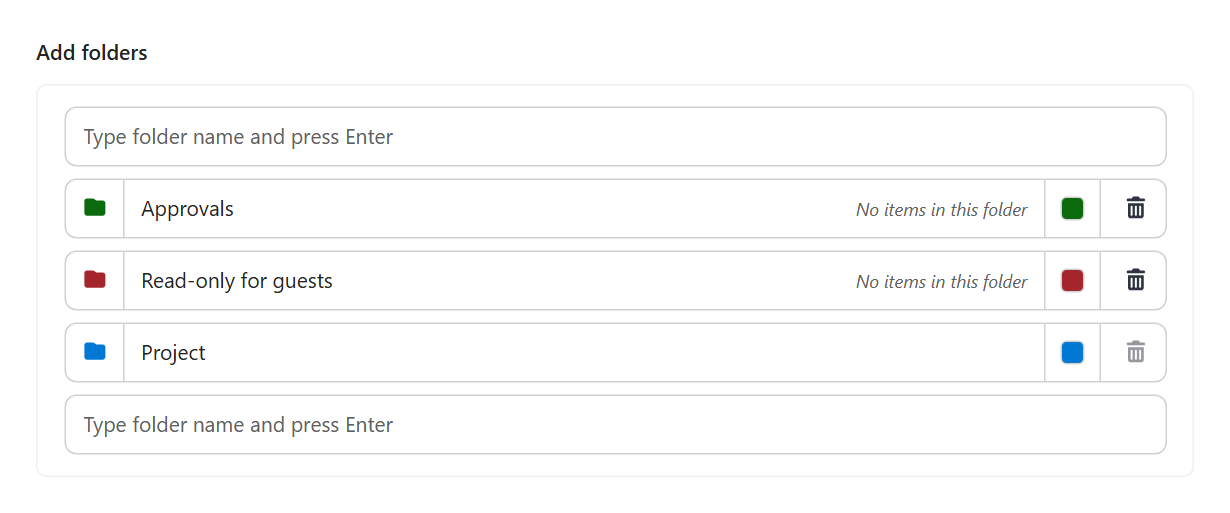
- Folders can now carry a color, chosen from the 16 SharePoint folder colors, in the folder tree of the SharePoint automation step.
- Colors are kept when you copy content from an existing library, so the visual cues your users rely on, such as areas that are read-only for guests, survive provisioning.
- See SharePoint.
Guest and sharing settings on Viva Engage templates
- The Allow guest invitations option and the Sharing section now show on Viva Engage templates, so you can stop communities from being opened to guests and set how their SharePoint site is shared.
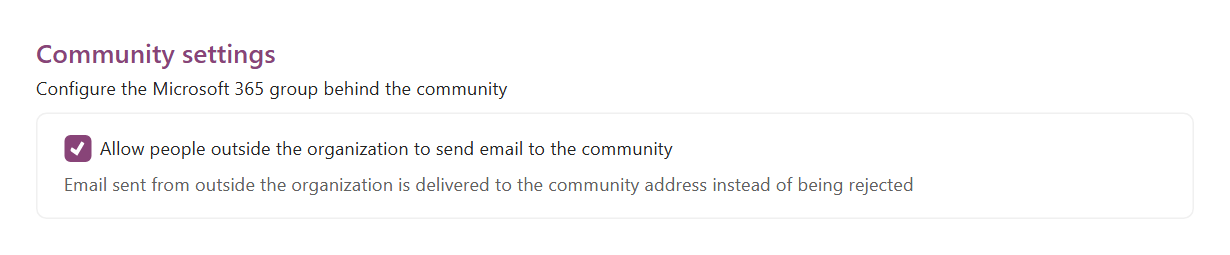
- Viva Engage templates get a Settings tab with one option: allow people outside the organization to send email to the community.
- New Viva Engage templates no longer store settings that were never applied (
Disable welcome emailandHide in Outlook experiences). - See Privacy and Settings.
How these updates will affect you
- Owner management is available as soon as you open a Details panel. Changes to a Team's owners are made through Microsoft Teams and are visible there at once.
- Nothing changes for existing Teams or templates. The first channel keeps the name Microsoft Teams gave it until you set First channel name on a template, and a change to the template never renames channels of Teams that already exist.
- Existing channel entries named
General, or named like the Microsoft Teams default in another language, are shown as First channel from now on. They keep working, and EasyLife saves the change the next time you save the action. - Existing library folders get the color of the template folder again each time the action runs. A template folder without a color leaves the color of an existing folder as it is. Permissions are not copied.
- Existing Viva Engage templates keep allowing guests until you open and save them. Communities that already exist keep their current guest setting.
- If a sensitivity label governs a Viva Engage template, the guest checkbox is disabled, because the label writes the guest setting of the group itself.