Aconitum
- Available on Insiders (26/10/2026)
EasyLife 365 Collaboration now lets you require a description for everything a template creates, hand new SharePoint sites files from a PnP package, and see which automation steps run for a template without leaving it.
What’s new?
Require a description in templates
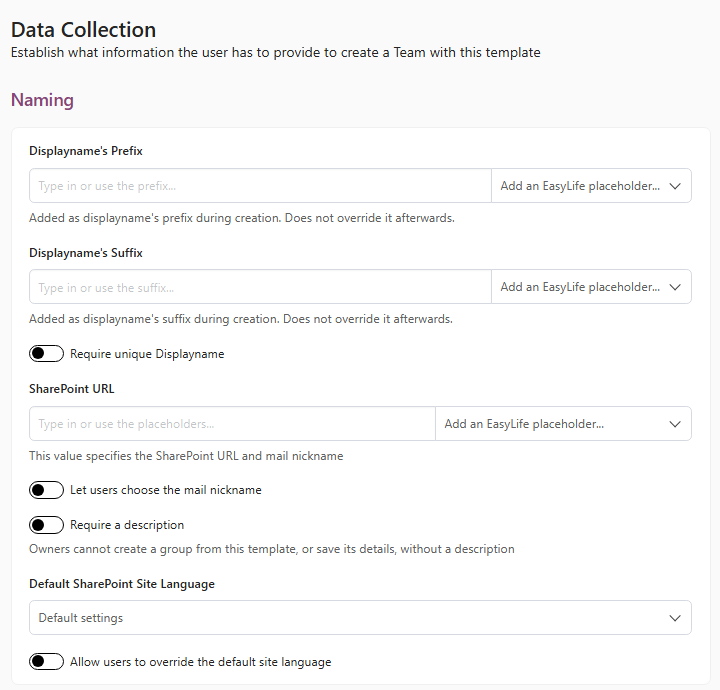
- Templates that create a group (Microsoft 365 Groups, Teams, Viva Engage communities and Education) and templates for SharePoint sites have a new Require a description switch on the Data Collection tab. It is off by default.
- With the switch on, the Create Wizard asks for a description and keeps Next disabled until there is one. Owners cannot save an empty description, and cannot apply the template to a resource without one.
- A description counts when it holds at least one character a reader can see. Spaces and line breaks do not count.
- See Data Collection.
Files in PnP provisioning templates
- A SharePoint automation step can now apply a
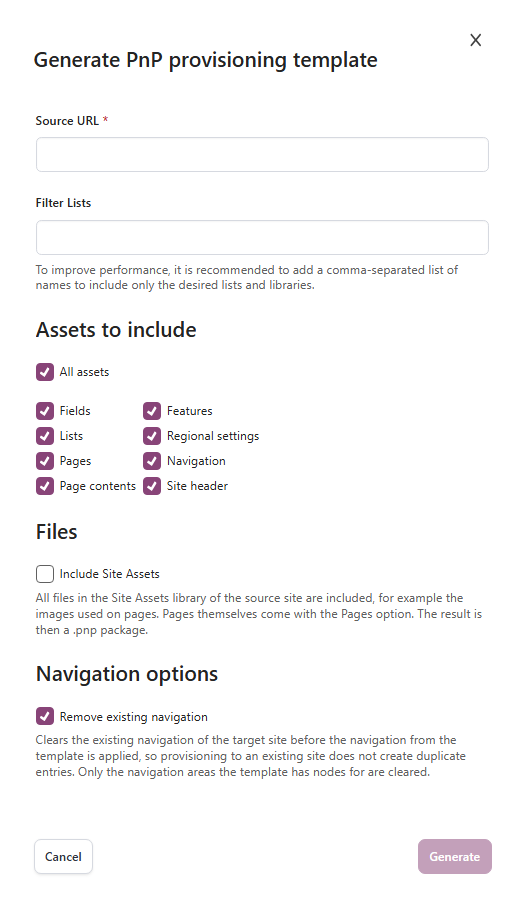
.pnppackage, so new sites start with files in place, for example a Word template or the images that pages use. Upload a package or let Generate template build one from an existing site with the new Include Site Assets option. - Files go into the Site Assets library of the new site, in the same folders as in the source site. Generate takes up to 500 files and 25 MB, and a package that you upload can be up to 25 MB.
- An XML template cannot carry files. EasyLife 365 refuses an XML with a file, folder or attachment entry when you upload it and points you to a package.
- See Generate a PnP Template for automation steps and SharePoint.
Automation steps on the Provisioning tab
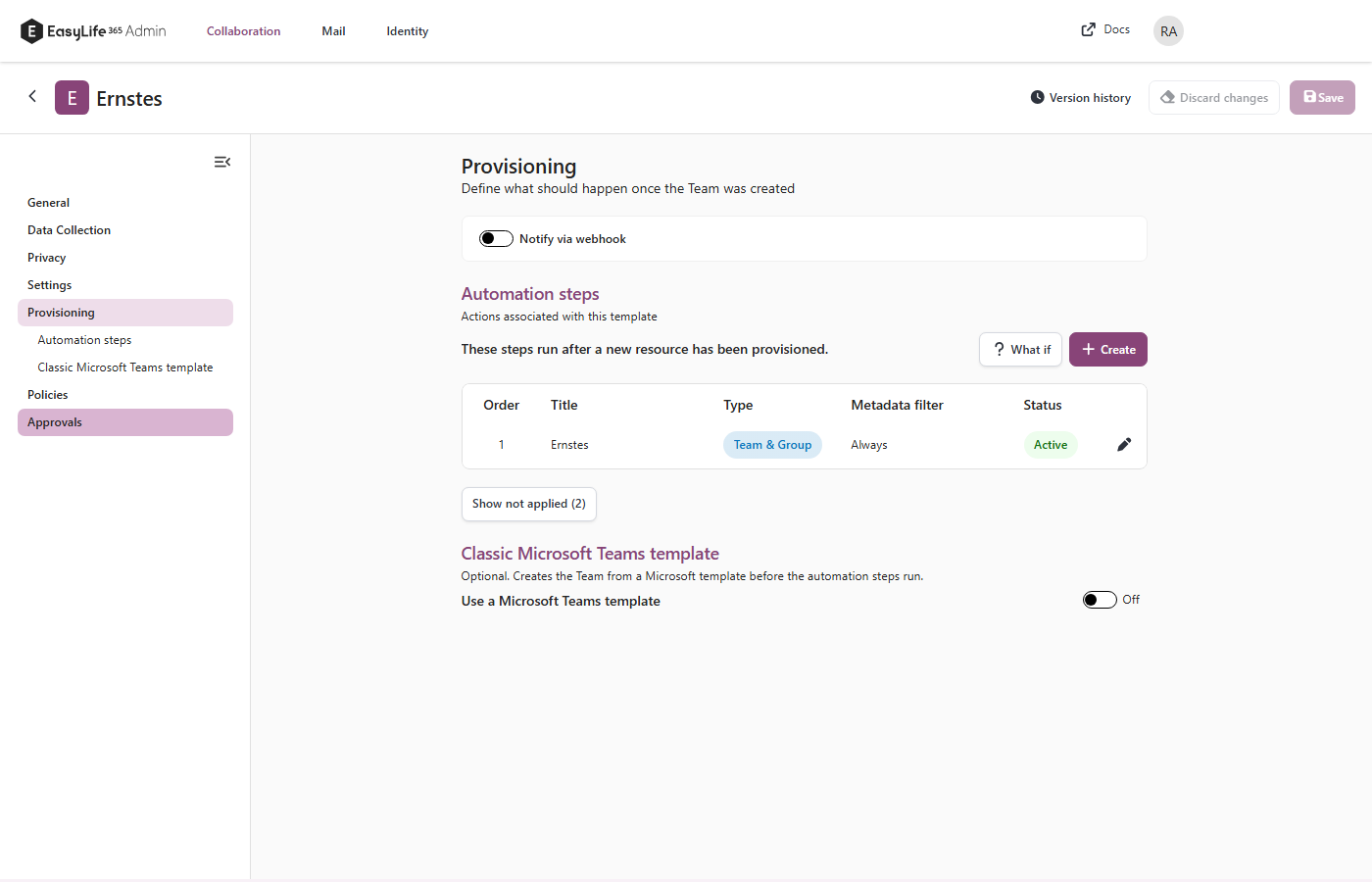
- The Provisioning tab of a template lists the automation steps that apply to it, in the order in which they run, with their metadata filter and status.
- What if shows which steps would run for example metadata, so you can check a filter without provisioning a resource.
- The classic Microsoft Teams template is now an optional switch below the steps of a Teams template. While the switch is on, EasyLife 365 warns you when a step adds channels or tabs, because they can then appear twice.
- See Provisioning.
How these updates will affect you
- Nothing changes for existing templates. Require a description is off until you turn it on, and the Admin portal does not check descriptions that an administrator enters.
- Existing XML templates without file entries work as before. An XML template that already holds a file entry, or a
Srcvalue with a path, is now refused when you upload it and fails when it is applied. Move such a template to a.pnppackage. - A package takes files from the Site Assets library only. A package that PnP PowerShell exported for another library, such as Shared Documents, is refused.
- The Provisioning tab only shows steps. Nothing about which steps run has changed.