Assigning the Exchange roles of the Mail app
The EasyLife 365 Mail app manages Exchange Online objects for you. Microsoft Graph permissions are not enough for this, so you must also give the app roles in Exchange. This page explains which roles the app needs and two ways to assign them.
You need a Global Administrator account, and you must already have given consent to the EasyLife 365 Mail application.
What the app needs and why
EasyLife 365 Mail creates and manages distribution lists, shared mailboxes, room mailboxes and equipment mailboxes in your organization. It can also create mail-enabled security groups. Exchange Online only allows this for callers that hold an Exchange role, so the app's service principal needs one.
You can assign the roles in two ways:
- Option 1: an Entra role. The quickest way. The roles are broad.
- Option 2: an Exchange role group. Narrower, but it needs PowerShell.
Which roles you need
| Feature | Entra role (Option 1) | Exchange roles (Option 2) |
|---|---|---|
| Distribution lists | Exchange Recipient Administrator | Distribution Groups, Mail Recipients |
| Shared, room and equipment mailboxes | Exchange Recipient Administrator | Mail Recipients, Mail Recipient Creation |
| Mail-enabled security groups | Exchange Administrator, in addition | Security Group Creation and Membership, in addition |
Mail-enabled security groups need more because only the role Security Group Creation and Membership offers the -Type parameter of New-DistributionGroup and the -BypassSecurityGroupManagerCheck parameter. In Entra, only Exchange Administrator holds that role.
Assign only what you use. If you do not switch on mail-enabled security groups, you do not need Exchange Administrator or Security Group Creation and Membership.
Option 1: Assign an Entra role
-
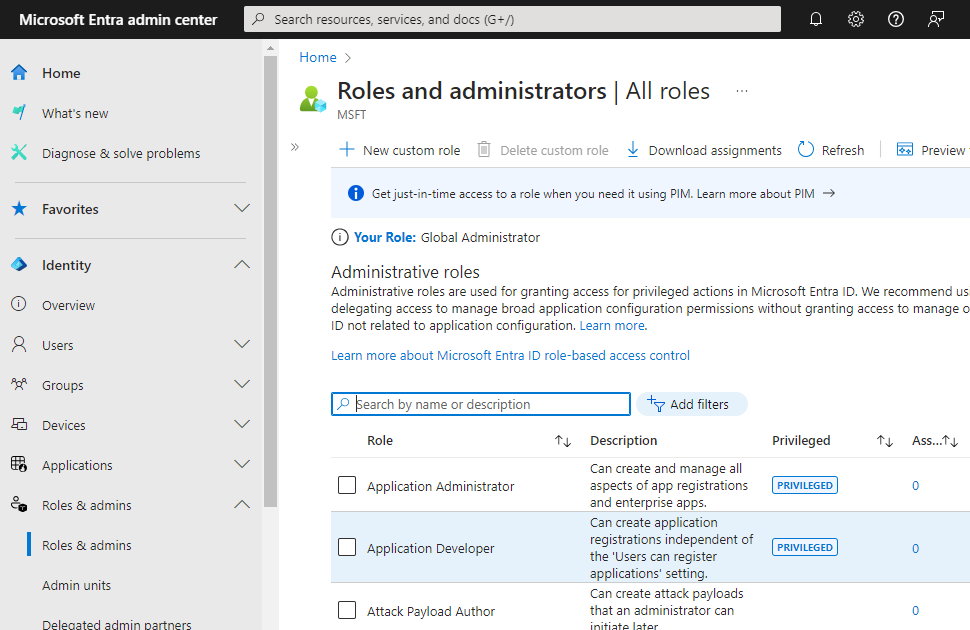
In the Azure portal, navigate to Roles and Administrators.
-
Search for the role that needs to be assigned to the application:
Exchange Recipient Administrator. If you use mail-enabled security groups, you also needExchange Administrator, so repeat these steps for that role as well.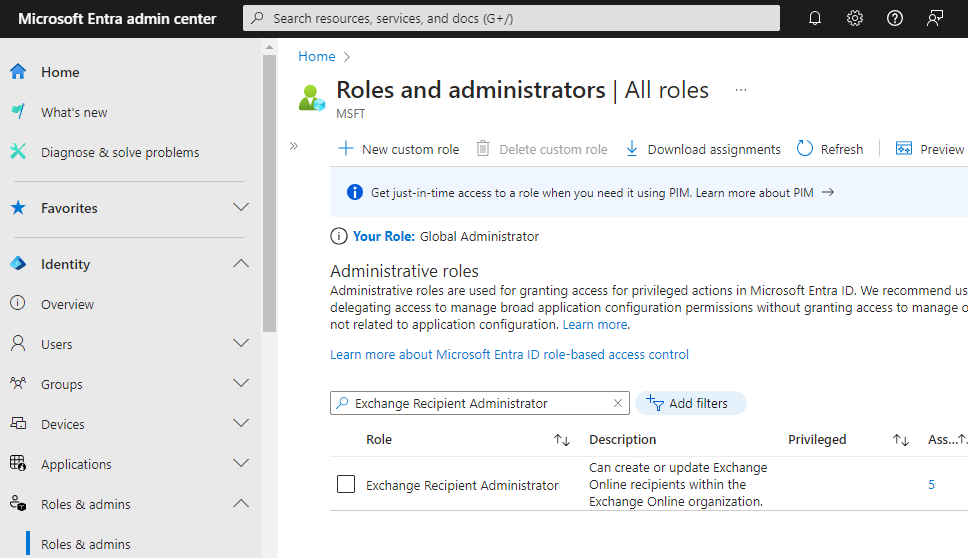
-
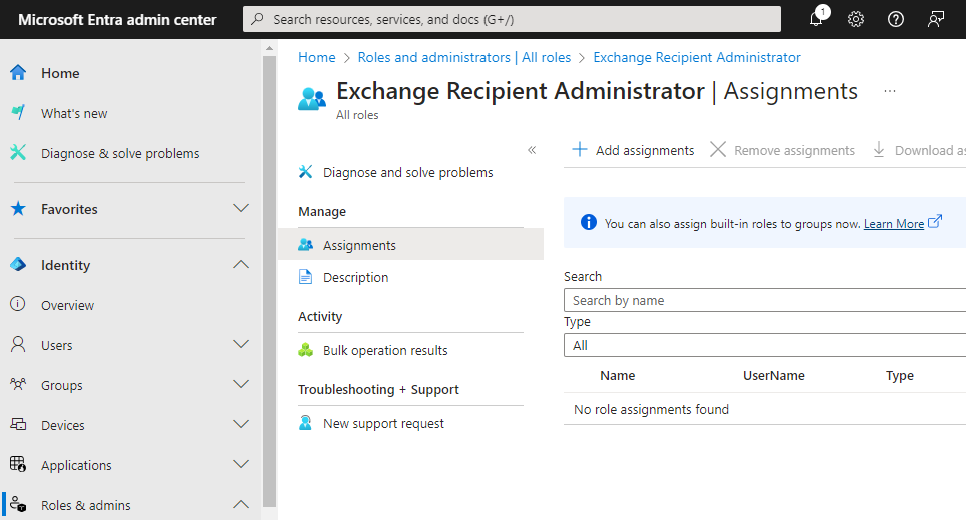
Select the role name in the list to open the Assignments screen.
-
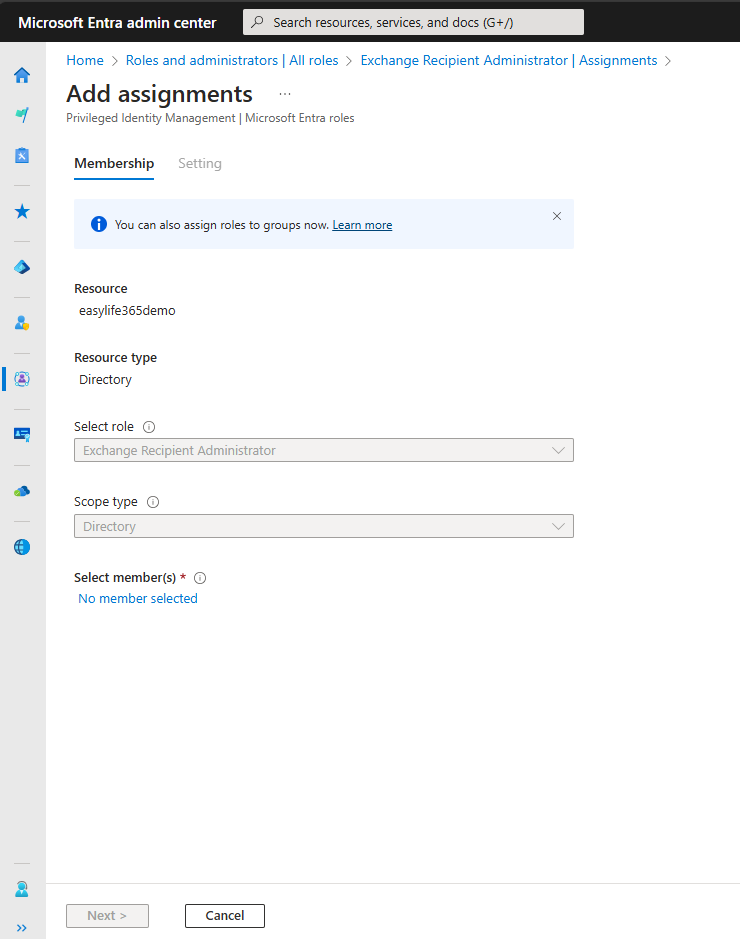
On the Assignments screen, select + Add assignments. This will take you to the Add assignments page. It may take a few seconds to load. Once loaded, you should see the Select member(s) section. Select the No member selected link.
-
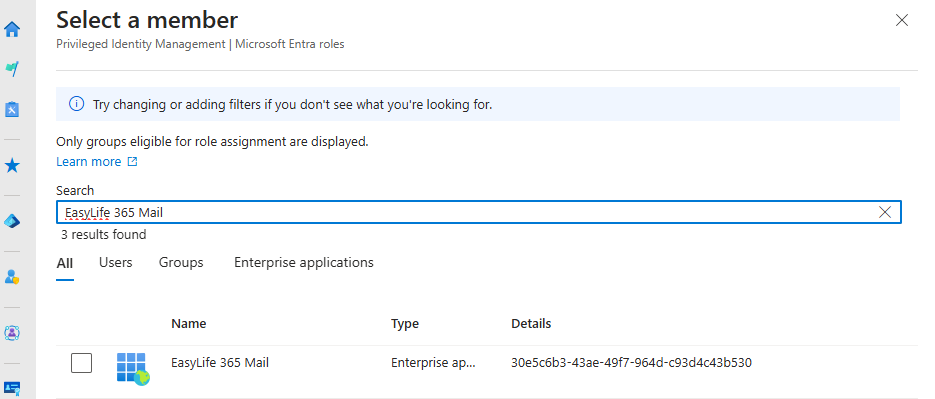
On the Select a member page, go to the Search box and type EasyLife 365 Mail. Select the EasyLife 365 Mail enterprise application from the list of suggestions and click Select at the bottom of the page.
Your tenant may hold several applications with a similar name. Check that the Application (client) ID shown for the entry is the one of the EasyLife 365 Mail app in your tenant (see Enterprise applications, then the app, then Properties).
-
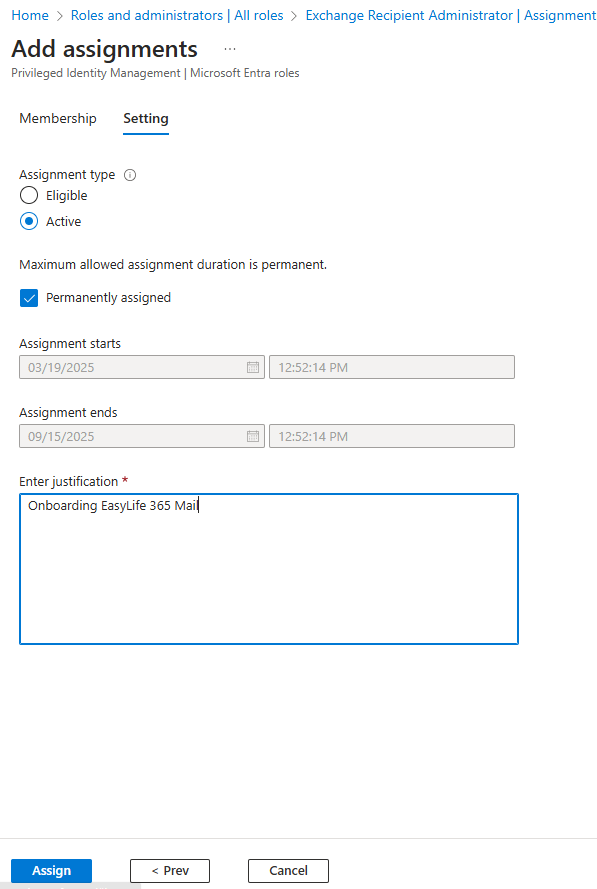
Once you have made your selection, you will be taken back to the Add assignments screen. Select Next, and once on the Settings tab, ensure that the assignment is active and supply a justification in the Enter justification field. This can be any relevant note for future reference.
Then continue with Check that it works.
What these roles allow
Entra roles are broad. Be aware of what you hand to the app:
- Exchange Administrator gives full administrative access to Exchange Online: mailboxes, groups, transport rules, connectors and organization settings. The app uses only a small part of this.
- Exchange Recipient Administrator can create and change all recipients in your organization: mailboxes, groups, mail users and contacts. This is more than the objects the app manages.
- The roles belong to the app, not to a user. Anyone who can use the app's credentials acts with these roles. Treat the app's credentials like those of an administrator, and review who can manage the application in your tenant.
If this is more than you want to give, use Option 2.
Option 2: Assign an Exchange role group (narrower)
Instead of an Entra role, you create an Exchange role group that holds only the roles the app needs, and add the app to it. This follows the option custom role group with the service principal in the Microsoft documentation. The app keeps its Graph permission Exchange.ManageAsApp, and has no Entra role.
The roles
| Role | Needed for | Also allows |
|---|---|---|
| Distribution Groups | Create, change, remove distribution lists and manage their members. Always needed. | Create, change and remove dynamic distribution groups. Some organization settings for groups (naming policy, default OU). |
| Mail Recipients | Mailbox settings, resource settings, full access and send-as permissions, lookups. Always needed. | Works on every mailbox, user, mail user and contact in the tenant. It can grant full access and send-as on any mailbox, remote wipe or remove mobile devices, and manage Microsoft 365 groups and inbox rules. |
| Mail Recipient Creation | Create and delete shared, room and equipment mailboxes. Only when the app manages mailboxes. | Create and remove mailboxes of any type, including user mailboxes, mail users and contacts. Restore soft-deleted mailboxes. |
| Security Group Creation and Membership | Create mail-enabled security groups and bypass the manager check. Only when you use mail-enabled security groups. | Manages every universal security group and its members, including groups the app did not create, without being their manager. |
These roles contain no transport rule, connector or role-management cmdlets, so the role group is narrower than Exchange Administrator. It is still wide where it matters: Mail Recipients and Mail Recipient Creation are not limited to the objects the app manages.
Prerequisites
- PowerShell 7.
- The PowerShell modules
Microsoft.Graph.ApplicationsandExchangeOnlineManagement(Install-Module). - An account that is an Exchange administrator and may read applications in Microsoft Entra ID.
- Admin consent for the Microsoft Graph permission
Application.Read.Allfor Microsoft Graph Command Line Tools. A Global Administrator can give it when you sign in. - Consent to the EasyLife 365 Mail application already given.
The script
Set the variables at the top. Set $manageMailboxes and $useSecurityGroups to $false for the features you do not use.
$appId: the Application (client) ID of the EasyLife 365 Mail app, from Enterprise applications in the Entra admin center.$tenantId: the ID of your tenant.
# Run as an Exchange administrator who may also read applications in Microsoft Entra ID.
# Needs the PowerShell modules Microsoft.Graph.Applications and ExchangeOnlineManagement (Install-Module).
# Needs admin consent for Application.Read.All (Microsoft Graph Command Line Tools); ask a Global Administrator if you may not give it.

# ---- Set these values ----
$appId = '<Application (client) ID of the Mail app in Enterprise applications>'
$tenantId = '<your tenant id>'
$manageMailboxes = $true      # shared, room and equipment mailboxes
$useSecurityGroups = $true    # mail-enabled security groups
# --------------------------

$ErrorActionPreference = 'Stop'
$appName = 'EasyLife 365 Mail'
$roleGroup = 'EasyLife 365 Mail'
$roles = @('Distribution Groups', 'Mail Recipients')
if ($manageMailboxes) { $roles += 'Mail Recipient Creation' }
if ($useSecurityGroups) { $roles += 'Security Group Creation and Membership' }

# Find the enterprise application in your tenant.
Connect-MgGraph -TenantId $tenantId -Scopes Application.Read.All -ErrorAction Stop
$app = Get-MgServicePrincipal -Filter "appId eq '$appId'" -ErrorAction Stop
if (-not $app) {
  throw "The application $appId was not found in this tenant. Give consent to $appName first, then run this again."
}

Connect-ExchangeOnline -ErrorAction Stop

# Stop unless both sign-ins are in your tenant.
$graphTenant = [string](Get-MgContext).TenantId
$exchangeTenant = [string](Get-ConnectionInformation -ErrorAction Stop).TenantID
if (($graphTenant -ne $tenantId) -or ($exchangeTenant -ne $tenantId)) {
  throw "Nothing was changed. Expected tenant $tenantId, but Microsoft Graph is connected to $graphTenant and Exchange to $exchangeTenant. Sign in to the right tenant and run this again."
}

# Exchange reports an object that does not exist as a ManagementObjectNotFoundException ("... could not be found ...").
# Only that counts as "absent". Any other error stops the script.
function Test-NotFound($errorRecord) {
  $text = "$($errorRecord.FullyQualifiedErrorId) $($errorRecord.CategoryInfo.Reason) $($errorRecord.Exception.Message)"
  return ($text -match 'ManagementObjectNotFoundException|couldn.t be found|could not be found')
}

# A member counts as this app only by its system-assigned identity: ExternalDirectoryObjectId must equal the object id
# of the application. Name, DisplayName and the application id are free text or public and are not compared.
function Test-IsApp($member) {
  return ([string]$member.ExternalDirectoryObjectId -eq [string]$app.Id)
}
function Get-Members([string]$failure) {
  try { @(Get-RoleGroupMember -Identity $roleGroup -ErrorAction Stop) }
  catch { throw "$failure $($_.Exception.Message)" }
}
function Write-Member($member) {
  Write-Host ("  Name={0}  RecipientType={1}  ExternalDirectoryObjectId={2}" -f $member.Name, $member.RecipientType, $member.ExternalDirectoryObjectId)
}

# When the role group exists already, read all of it first and stop unless it holds only this app and these roles: a
# group of this name made by someone else must not get roles it never had. Nothing is created or added before every
# check below has passed, so every "Nothing was changed" is true.
$group = $null
try { $group = Get-RoleGroup -Identity $roleGroup -ErrorAction Stop }
catch { if (-not (Test-NotFound $_)) { throw } }
$assigned = @()
if ($group) {
  $others = @(Get-Members "Nothing was changed. The members of the role group $roleGroup could not be read:" | Where-Object { -not (Test-IsApp $_) })
  if ($others.Count -gt 0) {
    Write-Host "Members of $roleGroup that are not recognised as this application:"
    $others | ForEach-Object { Write-Member $_ }
    throw "Nothing was changed. The role group $roleGroup already has members other than this application: $(($others | ForEach-Object { [string]$_.Name }) -join ', '). Remove them or use another role group first."
  }

  # Every assignment of the group is read, regular and delegating.
  $assignments = @(Get-ManagementRoleAssignment -RoleAssignee $roleGroup -ErrorAction Stop)
  $assigned = @($assignments | ForEach-Object { [string]$_.Role })
  $extraRoles = @($assigned | Where-Object { $roles -notcontains $_ })
  if ($extraRoles.Count -gt 0) {
    throw "Nothing was changed. The role group $roleGroup already has roles this application does not need: $($extraRoles -join ', '). Remove them or use another role group first."
  }

  # Delegating assignments let the group hand a role on, so none is accepted.
  $delegating = @($assignments | Where-Object { ($_.Delegating -eq $true) -or ([string]$_.RoleAssignmentDelegationType -like 'Delegating*') })
  if ($delegating.Count -gt 0) {
    throw "Nothing was changed. The role group $roleGroup has delegating role assignments ($(($delegating | ForEach-Object { [string]$_.Role }) -join ', ')), which let it hand a role on. Remove them or use another role group first."
  }

  # Managers are compared by their full value, never by a part of it. The admin running this script as a manager only
  # gives a warning, because the member and role checks above already protect the group; any other manager stops the script.
  $orgManagement = [string](Get-RoleGroup -Identity 'Organization Management' -ErrorAction Stop).Identity
  $admin = [string](Get-ConnectionInformation -ErrorAction Stop).UserPrincipalName
  $adminIdentity = $null
  try { $adminIdentity = [string](Get-User -Identity $admin -ErrorAction Stop).Identity }
  catch { Write-Warning "Could not look up $admin, so the admin counts as a manager only when written as ${admin}: $($_.Exception.Message)" }
  $managers = @($group.ManagedBy | ForEach-Object { [string]$_ })
  $adminManagers = @($managers | Where-Object { ($_ -ne $orgManagement) -and (($_ -eq $admin) -or ($_ -eq $adminIdentity)) })
  $otherManagers = @($managers | Where-Object { ($_ -ne $orgManagement) -and ($_ -ne $admin) -and ($_ -ne $adminIdentity) })
  if ($adminManagers.Count -gt 0) {
    Write-Warning "The role group $roleGroup can also be managed by $($adminManagers -join ', '), the admin running this script."
  }
  if ($otherManagers.Count -gt 0) {
    throw "Nothing was changed. The role group $roleGroup can be managed by $($otherManagers -join ', '), not only by Organization Management or you. Remove them or use another role group first."
  }
}

# Register the application in Exchange, unless it is registered already.
# Only an object-not-found error counts as "not registered yet"; any other error stops the script.
$exchangeApp = $null
try { $exchangeApp = Get-ServicePrincipal -Identity $app.Id -ErrorAction Stop }
catch { if (-not (Test-NotFound $_)) { throw } }
if (-not $exchangeApp) {
  New-ServicePrincipal -AppId $app.AppId -ObjectId $app.Id -DisplayName $appName -ErrorAction Stop
}

# Create the role group, or add the roles it is missing.
if (-not $group) {
  New-RoleGroup -Name $roleGroup -Roles $roles -Description "Exchange roles for the $appName app" -ErrorAction Stop
  try { $created = Get-RoleGroup -Identity $roleGroup -ErrorAction Stop; Write-Host "ManagedBy of the new role group $roleGroup is: $(@($created.ManagedBy | ForEach-Object { [string]$_ }) -join ', ')" }
  catch { Write-Warning "The new role group could not be read back to show its ManagedBy: $($_.Exception.Message)" }
} else {
  foreach ($role in $roles) {
    if ($assigned -notcontains $role) {
      New-ManagementRoleAssignment -SecurityGroup $roleGroup -Role $role -ErrorAction Stop
    }
  }
}

# Add the application to the role group, unless it is a member already.
$isMember = @(Get-Members 'The members of the role group could not be read after the changes; run the script again to finish.' | Where-Object { Test-IsApp $_ })
if ($isMember.Count -eq 0) {
  Add-RoleGroupMember -Identity $roleGroup -Member $app.Id -ErrorAction Stop
}
What the script does, in order:
- Signs in to Microsoft Graph and finds the enterprise application by its client ID.
- Signs in to Exchange and stops unless both sign-ins are in your tenant.
- If a role group of that name exists, reads its members, all role assignments and its managers. It stops, before anything is changed, if the group holds anything other than this app and the roles above, has a delegating assignment, or is managed by someone else than Organization Management.
- Registers the application in Exchange if it is not yet.
- Creates the role group, or adds the roles it misses, and adds the app as a member.
The script never removes anything, and you can run it again.
If you assigned an Entra role before, remove it after the check below has passed.
Check that it works
In the EasyLife 365 Mail Admin Portal, open the permissions step in onboarding and select Verify assignment, or open the settings page and select Check again. When all is in place, it shows Exchange permissions have been assigned. The check works for both options and changes nothing.
If it reports missing permissions, it names the roles to assign. If the roles were assigned just now, read the next section.
For Option 2 you can also read back what the app has:
Get-RoleGroup 'EasyLife 365 Mail' | Format-List Name, Roles
Get-RoleGroupMember 'EasyLife 365 Mail'
Get-ManagementRoleAssignment -RoleAssignee 'EasyLife 365 Mail' | Format-Table Role, RecipientWriteScope, ConfigWriteScope
It can take up to 24 hours
A newly assigned role can take up to 24 hours to take effect in Exchange. Until then, the check keeps reporting missing permissions and the app's Exchange actions fail with a permission error. Select Check again later.
Remove a role again
A removal applies within minutes.
- Entra role: in Roles and Administrators, open the role, select the EasyLife 365 Mail assignment and remove it. Do this for the Entra role you assigned before when you move to the role group, once the check passes.
- Role group: remove the app from the role group in the Exchange admin center, or with
Remove-RoleGroupMember -Identity 'EasyLife 365 Mail' -Member <object id of the app>.