Tasks
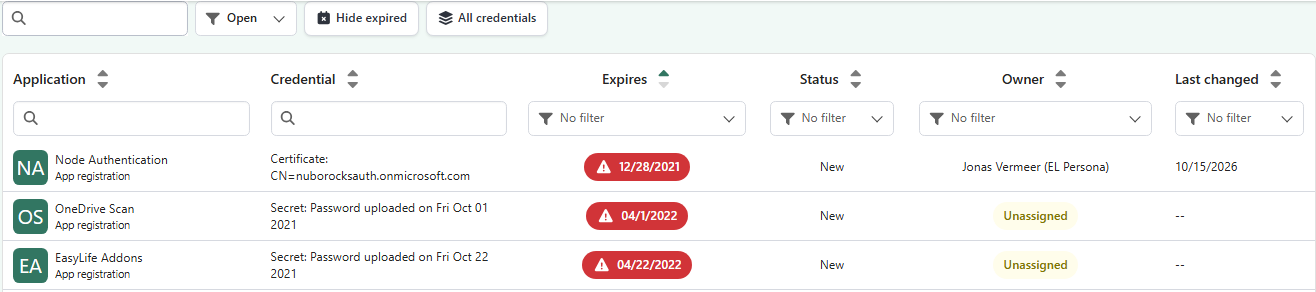
The Tasks page in EasyLife 365 Admin lists every credential across your tenant that needs action, and who is working on it. Use it to find expiring credentials that nobody has taken yet, assign them to someone who can renew them, and follow the progress of open tasks.
To open it, go to Manage → Tasks.
This page is for administrators. End users see their own tasks on the My Tasks page of the App. For how tasks work in general, see the Tasks concept.
What the page lists
The list combines two kinds of rows:
- Tasks that already exist, with their owner and status.
- Credentials without a task that are expired or expiring. Nobody has taken them yet, so they appear with the status New and the owner Unassigned.
A credential counts as expiring when it expires within the expiration threshold. With a Basic license, the threshold is 30 days for secrets and certificates and 60 days for SAML signing certificates. With a Professional license, the page uses the thresholds configured for your tenant. See Expiration.
The soonest expiry is at the top. Expired credentials are shown in red, and expiring credentials in yellow.
The page shows the existing tasks first. It then reads your applications and adds the credentials without a task while it reads them. A banner says so while this is running. In a large tenant this can take a moment.
Columns
| Column | Description |
|---|---|
| Application | The application name, and whether it is an App registration or an Enterprise application. |
| Credential | The credential type (Secret or Certificate) and its name. |
| Expires | When the credential expires, or how long ago it expired. |
| Status | New, In progress or Closed. |
| Owner | The person the task is assigned to, or Unassigned. |
| Last changed | When the task was last changed. |
Open and Closed views
The view selector in the toolbar switches between two lists:
- Open: tasks that are New or In progress, and the credentials nobody has taken yet. This is the default view.
- Closed: tasks that someone has closed.
Search and filters
Use these controls to narrow the list. Text searches ignore capital letters.
- Search (above the table): finds a row by the text of any column, by the expiry or change date as shown in the table, or by an ID pasted from the Entra admin center: the object ID, the application (client) ID or the credential ID.
- Application: filter by the application name, its type, its object ID or its application (client) ID. It never matches a credential.
- Credential: filter by the credential type, its name or its ID.
- Expires: show Expired or Expiring soon credentials, those that expire within 7, 30 or 90 days, those that expire in more than 90 days, or those with No expiry date.
- Status: show only New or only In progress tasks. This filter is only available in the Open view.
- Owner: show only the tasks of one person, or the tasks with No owner. If you switch between Open and Closed and that person has no task in the other view, the owner filter is cleared.
- Last changed: show the tasks changed within the last day or the last 7, 30 or 90 days, those changed more than 90 days ago, or those Not changed yet.
- Hide expired: hide the credentials that have already expired.
- All credentials: also list the credentials that do not expire soon, so you can assign a task before it is due. This button is only available in the Open view.
The filters are kept in the page address. They stay when you reload the page, and you can share the link to show someone the same filtered list.
Task panel
Select a row to open the task panel. The panel shows:
- When the credential expires
- When the task was created, and who changed it last
- Owner and status changes: the history of the task's owner and status
The history needs audit logging. If audit logging is not configured, the panel says so. If it is configured but EasyLife 365 Identity cannot read the Log Analytics workspace, the panel asks you to grant it the Log Analytics Reader role on the workspace. See Logging.
Change a task
- Select the row of the credential.
- In Assign task or Assigned to, choose the person who should handle the credential. Select Assign to myself to take the task yourself.
- Choose a Status: New, In progress or Closed.
- Optionally, add a Comment for the owner. The comment is plain text: a comment that contains HTML markup is refused until you remove it.
- Select Save.
When you save changes to a credential that had no task, EasyLife 365 Identity creates the task. The row then shows the new owner instead of Unassigned.
The person you assign becomes the only one who receives notifications about this credential. See Tasks and notifications.
Who can be assigned
A task can only be assigned to someone who can renew the credential:
- An owner of the application in Microsoft Entra ID
- A technical owner who may manage credentials (Edit credentials)
- An administrator with one of the Entra ID roles listed in Who can change a task
The picker only offers these people. Guests and disabled accounts are refused.
This rule needs the RoleEligibilitySchedule.Read.Directory Microsoft Graph permission for EasyLife 365 Identity. If your tenant has not granted it, EasyLife 365 Identity cannot check whether the person you assign can change the application, so any enabled member of your organization can be assigned. The Tasks page then shows the warning Tasks can be assigned to people who cannot change the application, with a Go to System info button. System info is the menu name of the System configuration page, where you update the permissions.
Who can change a task
To change a task, you need one of these Microsoft Entra ID roles, active at the time you open the page:
- Application Administrator
- Cloud Application Administrator
- Global Administrator
- Privileged Role Administrator
Other administrators can open the Tasks page and every task panel, but read-only. The panel shows You do not have permission to change this task, the current owner and the comment. It has no Save button.