Mail-Enabled Security Groups
A mail-enabled security group is a distribution list that can also grant permissions, for example to resources in Microsoft 365. Because it grants access, it needs owners who keep its membership accurate. Owners decide who is a member, and membership is what grants the access. EasyLife 365 Mail governs mail-enabled security groups with the same lifecycle as distribution lists. It does not change what a group has been granted.
Turn it on
EasyLife 365 Mail needs two things before it can govern mail-enabled security groups:
- Distribution list management is switched on.
- The EasyLife 365 Mail application holds the Exchange role Security Group Creation and Membership. See Exchange roles.
To switch the feature on:
- In EasyLife 365 Admin, go to
Settings→Tenant Settings. - In the
Resource type managementsection, switch onEnable mail-enabled security group management. - Select
Save.
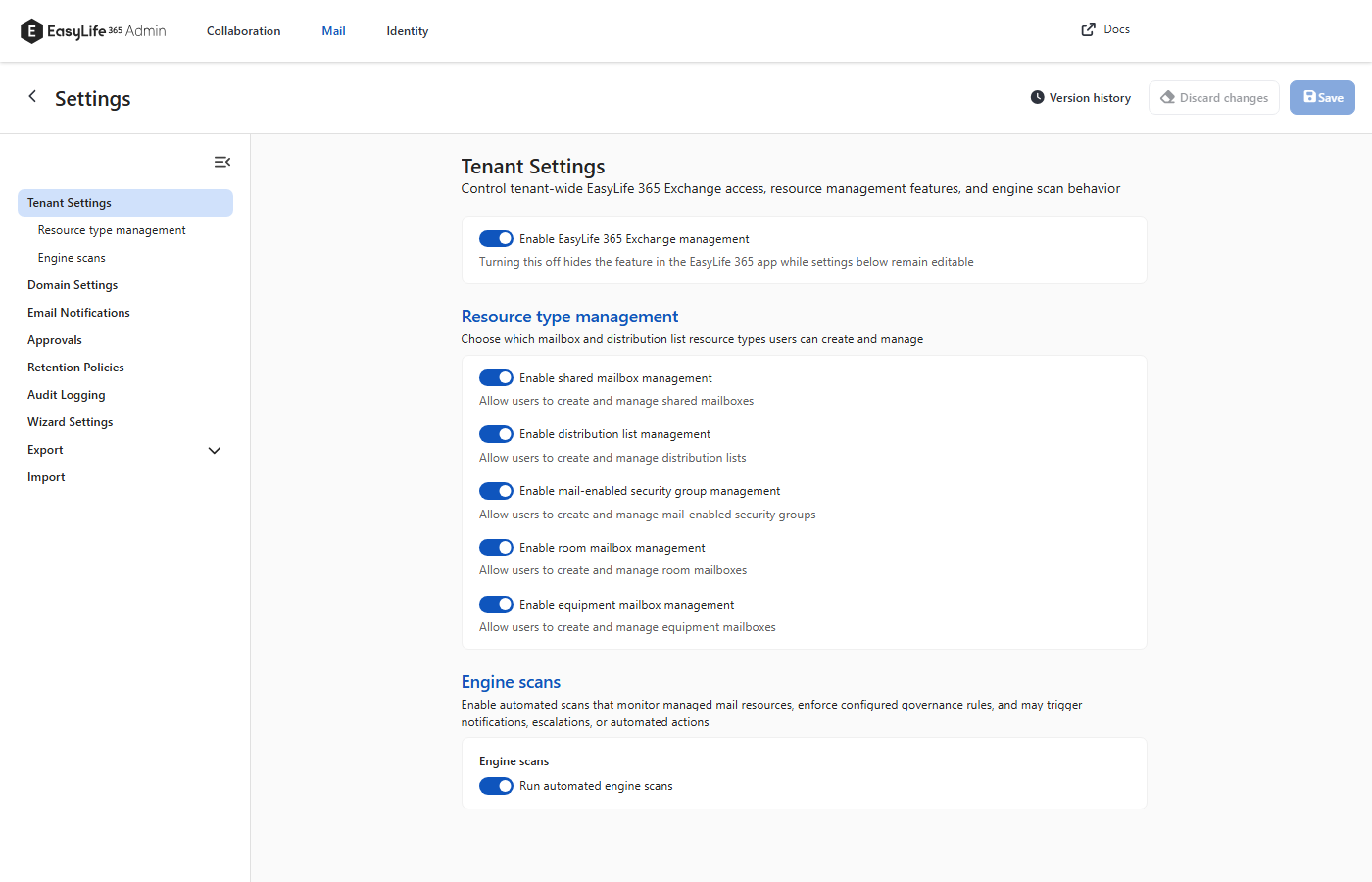
When you switch the setting on, the Admin Portal asks Exchange whether the application may create security groups and shows the result. It does not change anything in Exchange. If the role is missing, the message tells you which role to assign. A newly assigned role can take several hours to take effect, and you can save the setting in the meantime. Use Check again to repeat the check.
If you switch the setting off again, owners can no longer change their security groups in EasyLife 365 Mail. They see the message Managing mail-enabled security groups is switched off for this tenant.
Templates and policies
Once the feature is on, the Admin Portal shows Mail-enabled security group under Templates and under Policies.
- Templates work like distribution list templates.
- Policies have the same sections as distribution list policies: owners, confirmation, access review and template. In addition, a
Guestssection controls how guest members are reviewed and removed. See Managing policies.
Manage security groups
To see all mail-enabled security groups, go to Manage → Mail-enabled security groups in the Admin Portal. The list shows each group with its template, policy and compliance. Use the filters, Export and the details panel the same way as for distribution lists.
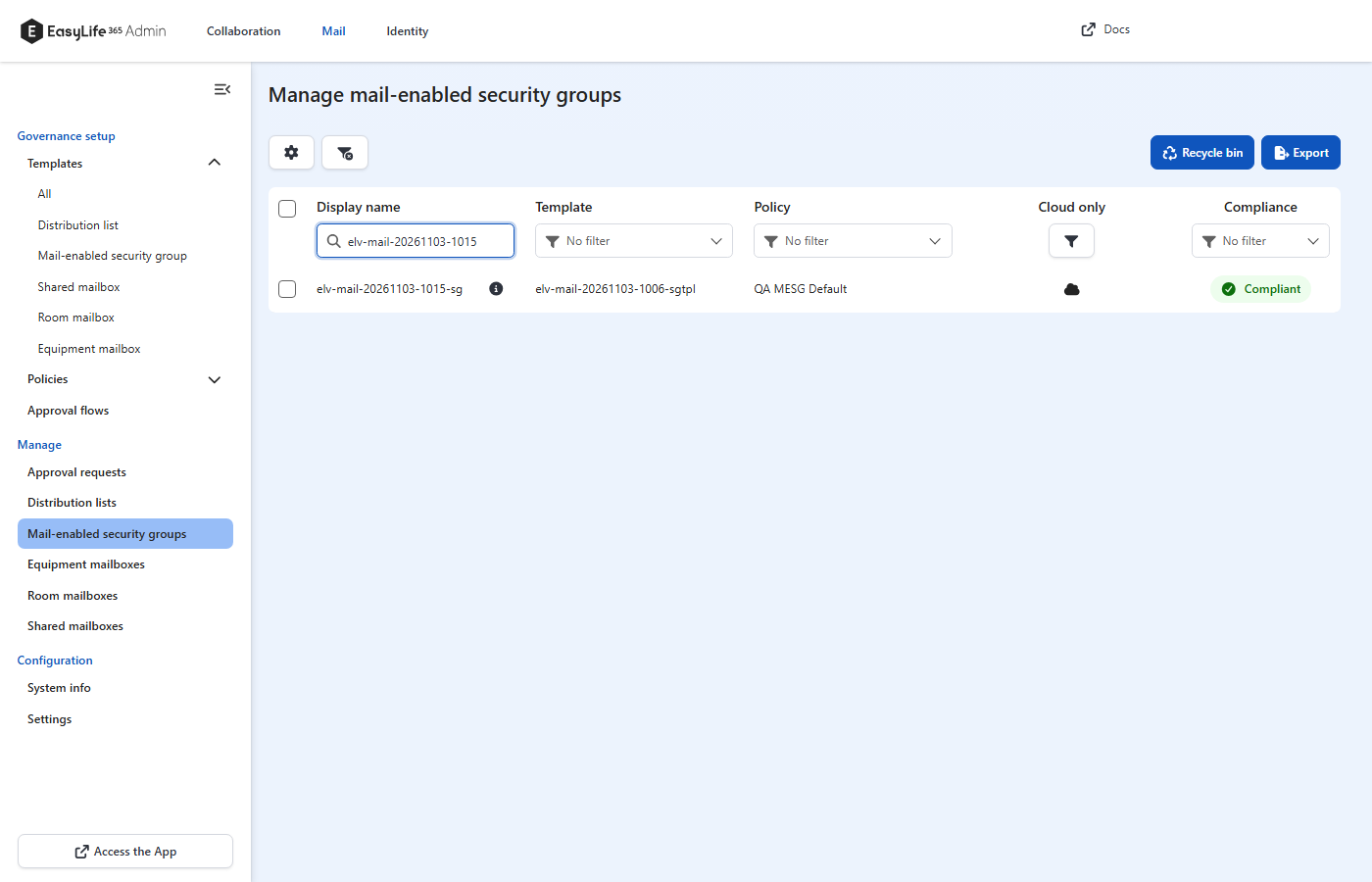
The Recycle bin button opens a record of the mail-enabled security groups deleted in the last 30 days, with who deleted each one and when. It shows security groups only, not distribution lists.
The recycle bin is a record for review. It has no restore action, so a deleted security group cannot be brought back from it. To get the group back, create it again. Use the recorded details as a reference.
In the Mail App
With the feature on, EasyLife 365 Mail has a Security groups page under Manage resources. Owners find their security groups there. They create a security group with Create new and a security group template.
Owners and members are set in the same way as for distribution lists, with the independent Owner and Member checkboxes. See Owners and members.
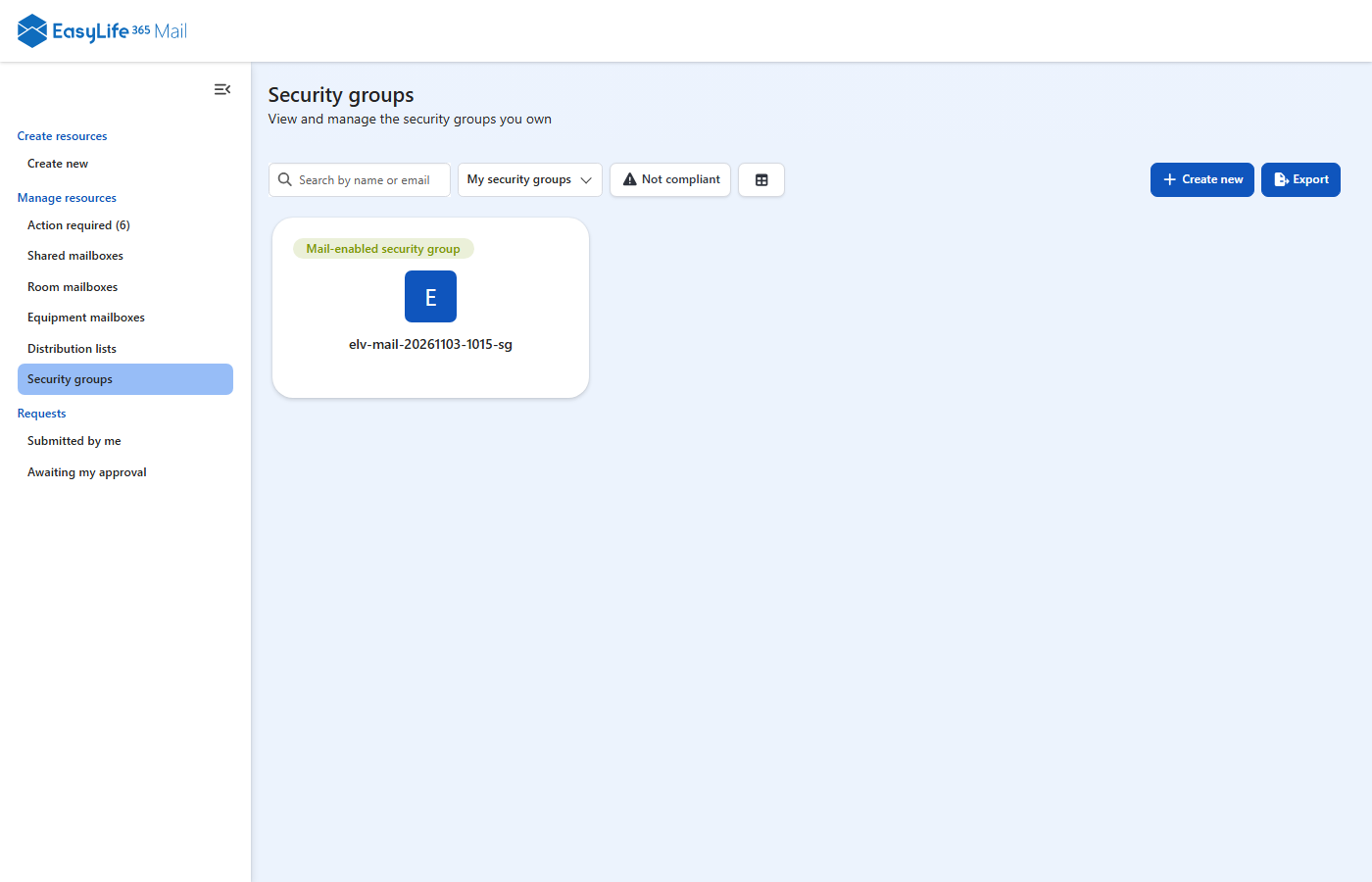
A security group that is synchronized from your on-premises Active Directory is read-only. Update its properties in your local Active Directory.