Security Center
The Security Center is the page of a team, group or guest in EasyLife 365 Collaboration that shows owners how the resource stands against its policy. A OneDrive account shows one card, for its access review. Every rule of the policy is a card. A card says what the rule requires, whether it is met, when you have to act, and what happens if you do nothing.
Owners use it to keep a resource compliant. Administrators define the rules in the policies.
Open the Security Center
- In EasyLife 365 Collaboration, open Action required or Teams and groups.
- Select the team or group.
- Select Security Center in the menu of the resource.
A warning icon next to Security Center means that at least one rule needs your action.
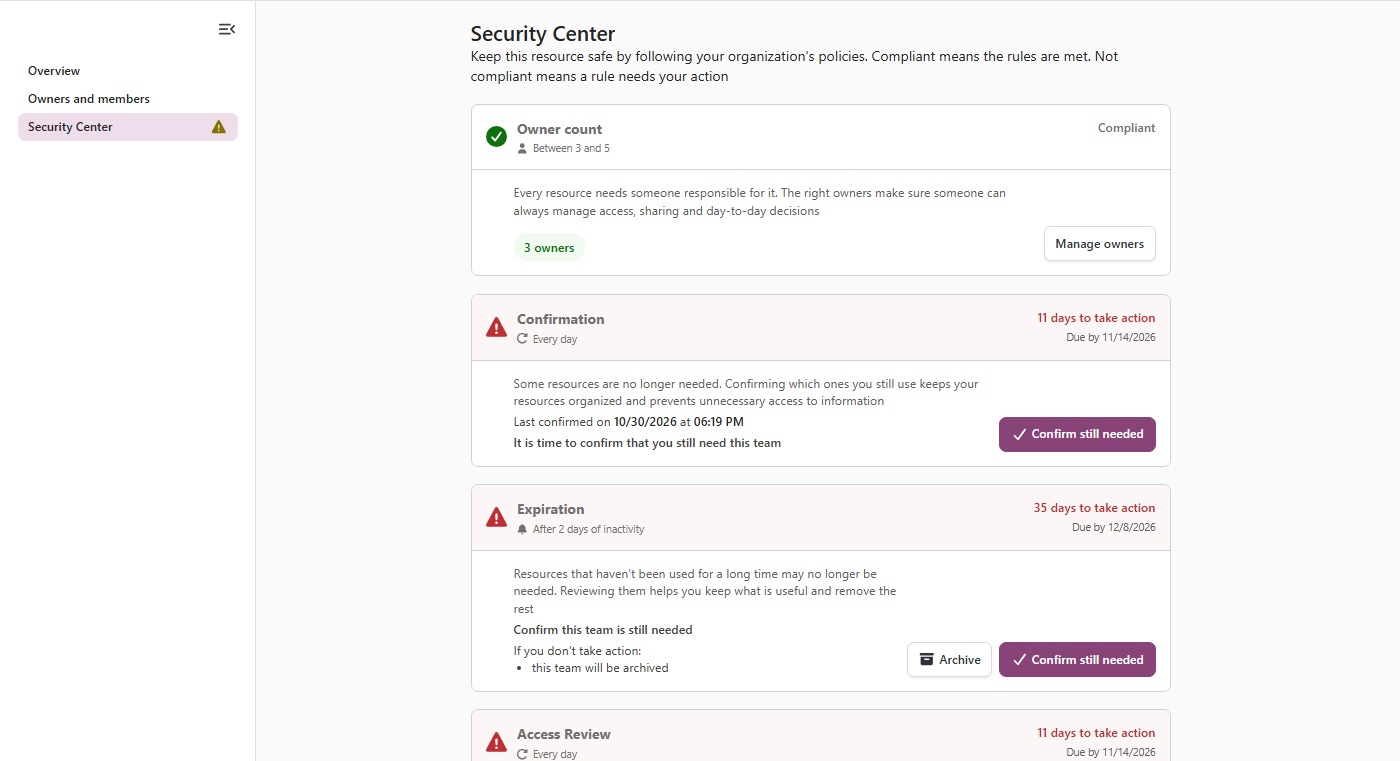
What a card shows
Each card has the same parts:
- The rule. The name of the rule and, below it, what it requires or how often it repeats, for example Between 3 and 5, Every day or After 2 days of inactivity.
- The state. Compliant, or the number of days left to take action with the due date.
- What the rule is for. One sentence about why the rule exists.
- What to do. The instruction, in bold, when the rule needs your action. The Confirmation card also shows when the resource was last confirmed.
- What happens if you do nothing. The line If you don't take action names the escalation, for example that the team will be archived.
- The actions. The button that fixes the rule, and next to it the escalation, if the rule has one.
The minimum and the maximum number of owners are one card, Owner count. It shows the limits in one line and how many owners the resource has.
Actions on the cards
| Card | Action | What it does |
|---|---|---|
| Owner count | Manage owners | Lets you manage the owners of the resource. See Owners. |
| Confirmation | Confirm still needed | Confirms that you still need the resource and restarts the countdown. See Confirmation. |
| Expiration | Confirm still needed, Archive | Confirms the resource is still in use, or archives it now. See Expiration. |
| Access Review | Start access review, Archive | Starts the review of who has access, or archives the resource now. See Access Review. |
| Archival | Keep archived | Confirms that you still need a resource that is already archived. See Archival. |
The escalation, for example Archive, sits next to the main action. What it does depends on the policy and on the archive connector. See Access Review.
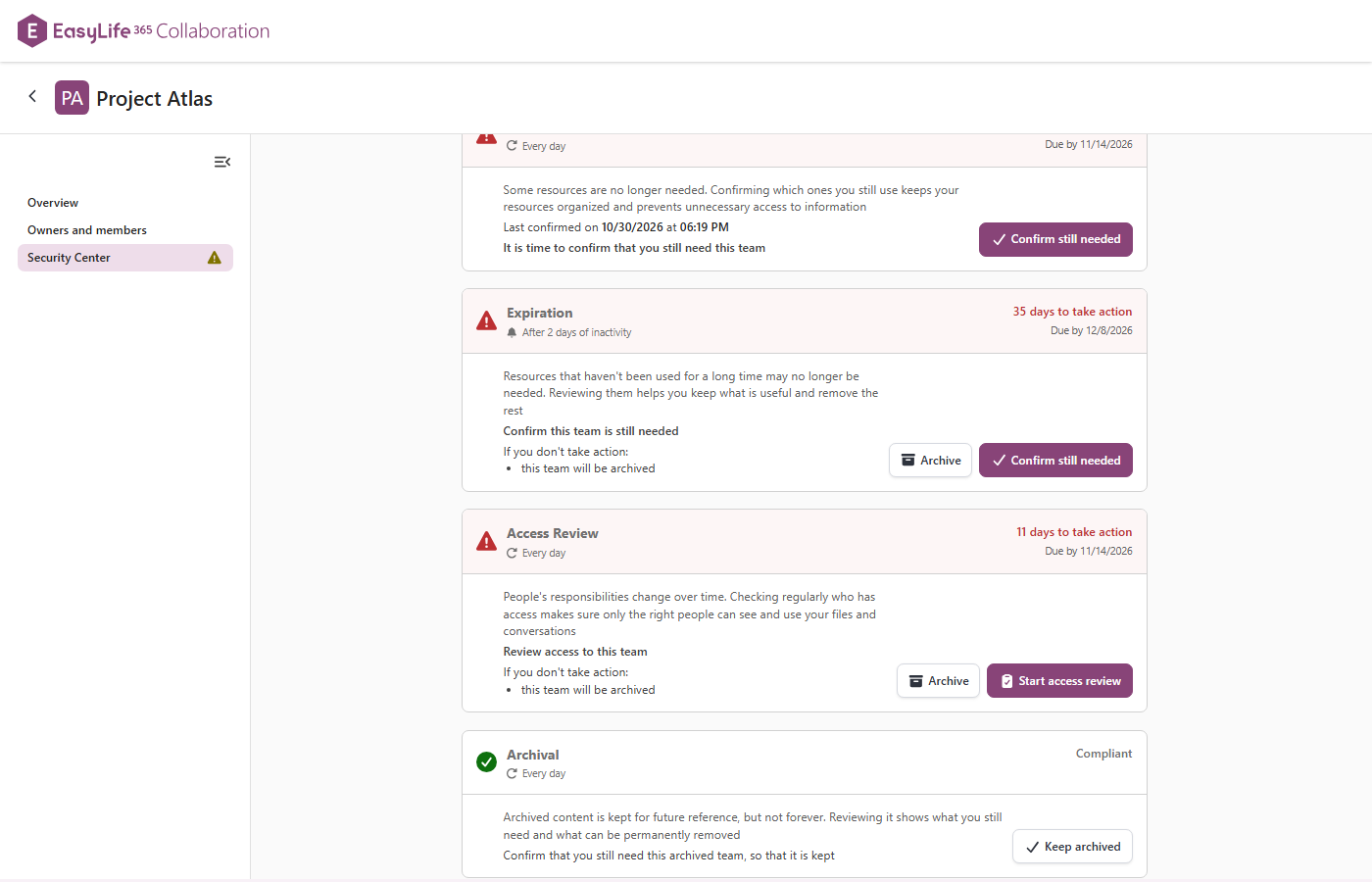
Act before the deadline
You do not have to wait for the due date. A rule that is compliant still shows its action, and using it before the deadline restarts the countdown. A compliant rule that repeats also shows when it is due next.
Guests and OneDrive accounts
The Security Center of a guest works the same way. Each rule of the guest policy that applies is a card:
- Confirmation. Asks you to confirm that you still need the guest account.
- Ownership. Checks that the guest account has the minimum number of owners. Add owners fixes it.
- Invitation. Shows whether the guest accepted the invitation. Resend invitation sends it again.
- Inactivity. Shows when the guest account becomes not compliant after days without activity.
- Disabled. Shows when a disabled guest account becomes not compliant.
- Naming and Template. Show that the display name is set by policy and that the guest account has a template.
A card that names an escalation says what happens if nobody acts, for example that the guest account is deleted or that its access is blocked.
A OneDrive account has one card, Access review. It asks the owner to review who has access to the OneDrive. If nobody acts, the shared items are unshared.