Sharing
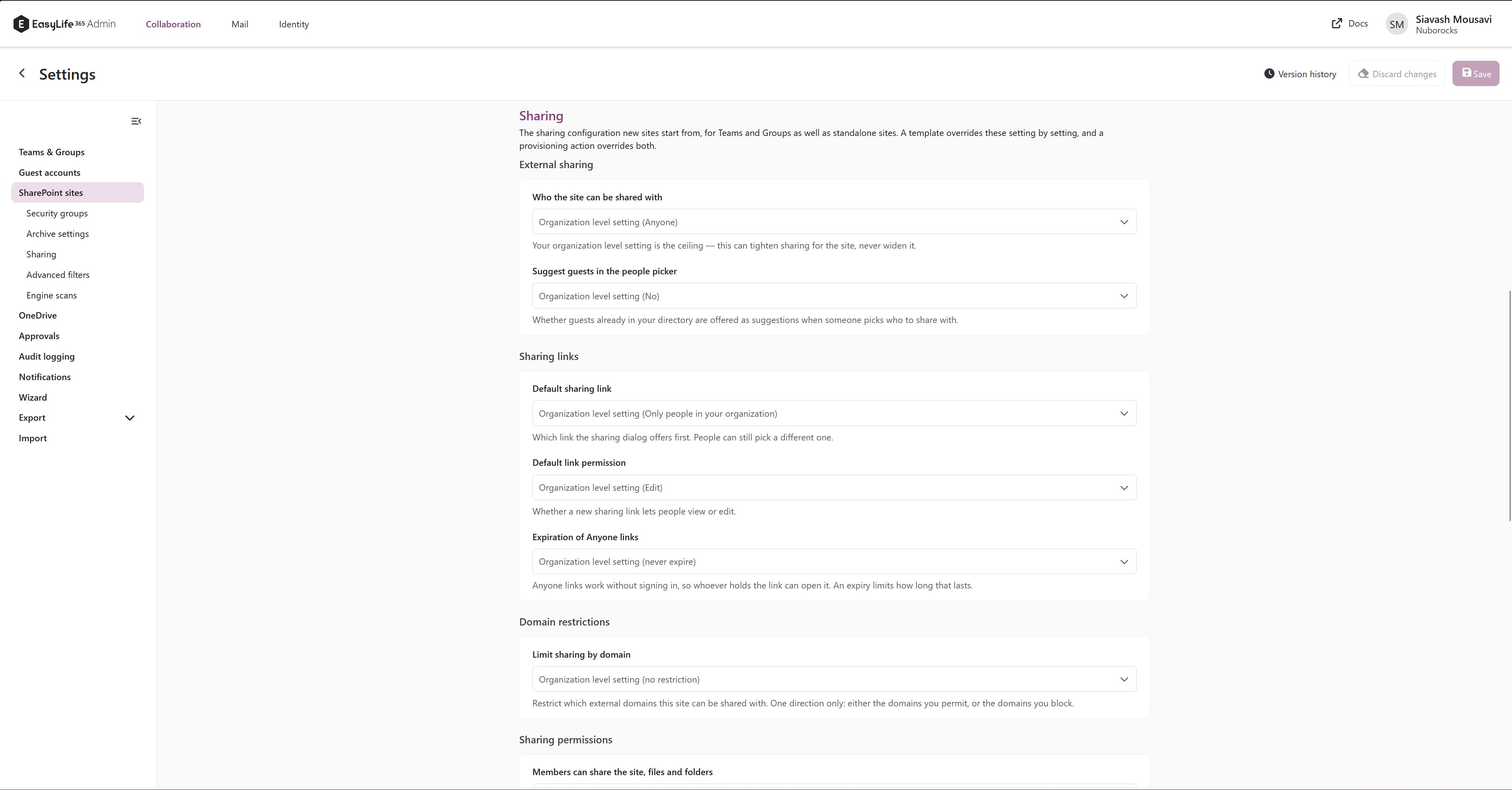
The Sharing section governs the complete site-level sharing configuration of the SharePoint site behind a resource. It controls who a site can be shared with, which link the sharing dialog offers first, which external domains are allowed, who inside the site may share at all, and what happens when someone without access asks for it.
The same section appears at three layers, so the controls never drift apart:
| Layer | Where you find it | What "unset" means |
|---|---|---|
| Tenant default | Settings → SharePoint sites → Sharing | Organization level setting — the site keeps your SharePoint organization-level setting |
| Template | Template → Privacy → Sharing | Tenant default settings — the tenant default decides |
| Provisioning action | Provisioning action → SharePoint → Sharing | Keep what provisioning applied — the value the earlier layers produced stays |
The tenant default under Settings → SharePoint sites applies to all new sites — Teams and Microsoft 365 Group sites as well as standalone SharePoint and Communication sites. The other settings on that page apply only to standalone sites.
How the three layers resolve
Resolution happens per setting, not per section and not per layer.
- The tenant default supplies a value for every setting you configure there.
- A template overrides the tenant default setting by setting. Anything the template leaves unset keeps the tenant default.
- A provisioning action runs last, on the finished site, so anything it sets wins over both. Anything it leaves unset keeps whatever provisioning already applied.
A setting that no layer configures is not written at all — the site keeps your SharePoint organization-level setting.
Your SharePoint organization-level setting is still the ceiling. A site can only be as restrictive as, or more restrictive than, your tenant. EasyLife resolves its own three layers; Microsoft caps the result independently.
Every control names its default
Wherever a control is left unset, the option that represents "unset" names the value behind it — for example Tenant default settings (Anyone) — read live from your tenant's own SharePoint settings, the way the SharePoint admin center writes "Same as organization-level setting (Edit)".
If that read is unavailable, the option shows the plain label without a value in brackets. The form still works; it just cannot name the default.
Settings that the sharing capability in force makes meaningless are turned off rather than hidden, with the reason shown beside them. For example, a tenant that permits no Anyone links leaves no Anyone-link expiry to set anywhere below it.
External sharing
- Who the site can be shared with —
Only people in your organization,Existing guests,New and existing guests, orAnyone. This can tighten sharing for the site, never widen it beyond your organization-level setting. - Suggest guests in the people picker — whether guests already in your directory are offered as suggestions when someone picks who to share with.
When a sensitivity label governs the site
A sensitivity label is applied to the container and SharePoint derives the sharing capability from it. EasyLife therefore does not write its own capability on a labelled site — writing one would fight the label.
Only the capability defers to the label. Domain restrictions, link defaults, sharing permissions and the Anyone-link expiry are still applied by EasyLife on a labelled site.
When a label governs the capability, the Who the site can be shared with control is disabled and a hint above it names the label and explains why. Three situations produce this, and the third is easy to miss:
- The template applies a label itself.
- The template shows the label picker, so whoever requests the resource chooses.
- Your tenant has a default sensitivity label. It is applied to every new group whether or not the template mentions labels at all.
Where the label carries group protection, the hint also states whether that label allows guest access.
The tenant default label is only claimed on Microsoft 365 Group and Team templates, because it is applied to every new group. It is not claimed on standalone SharePoint site templates.
Sharing links
- Default sharing link — which link the sharing dialog offers first:
People with existing access,Specific people,Only people in your organization, orAnyone with the link. People can still pick a different one. - Default link permission — whether a new sharing link lets people
VieworEdit. - Expiration of Anyone links — leave unset to defer to the layer above, or choose
These links never expireorThese links must expire within this many days. Choosing a day count reveals a Days field that accepts 1 to 730 days.
Anyone with the link disappears from the Default sharing link list when the capability in force does not permit Anyone links, and any value already stored there is cleared. SharePoint refuses that combination outright, and because the whole sharing configuration is written as one update, one impossible setting would take every other sharing setting with it.
When Anyone links are not permitted, the expiry controls are replaced by a message explaining which layer turned them off.
Domain restrictions
- Limit sharing by domain —
Only the domains below(an allow list) orAny domain except those below(a block list). Then add one domain per row.
SharePoint keeps one direction only. Choosing a direction clears the list belonging to the other one and seeds an empty row for the new one.
Each entry must be a single DNS domain such as contoso.com. Wildcards, schemes, paths, commas and spaces are rejected on save, because the list is written to SharePoint as a comma-separated string and a pasted list in one row would silently become several domains.
When external sharing is off, there is nothing to restrict, so the controls are replaced by a message saying so.
Sharing permissions
- Members can share the site, files and folders — owners can always share. Turning this off leaves sharing to them. A new site starts at
Yes. - Stop members adding people to the site members group — turning this on removes the members group's own membership editing. A new site starts at
No.
Stop members adding people to the site members group only ever takes the permission away. There is no way to grant it back from EasyLife, so No and the unset option both mean "leave the group as it is".
These two settings name their default on the tenant default and template layers, where the value applies to a site being created. A provisioning action runs against a site that already exists, so no creation default is named there.
Access request
- Allow access requests — whether someone without permission can ask for access instead of simply being refused.
- Send access requests to — where a request is sent. Leave empty to send requests to the site owners.
The address must be a single valid email address such as requests@contoso.com. A display-name form or a list of addresses is rejected on save.
No default is named on either control. There is no tenant equivalent to read, and a new site inherits its access request address from its parent, which differs per site.
Moving from the old settings
Nothing needs to be reconfigured by hand.
- The old single External Sharing dropdown on a template is read into Who the site can be shared with. Its
Tenant default settingsvalue becomes the unset state, which behaves the same way. - The access request pair and the three permission settings that previously existed only on a SharePoint provisioning action are read into the action's own Sharing section. The legacy fields are cleared the next time the action is saved, so the same property can never be written from two places.
- An action that already configures these settings keeps its values, and still wins over the template and the tenant default because it runs last.
Related pages
- Privacy — sensitivity labels, resource privacy and guest invitations on a template
- SharePoint automation step — the provisioning action layer
- Settings — the tenant default under
SharePoint sites